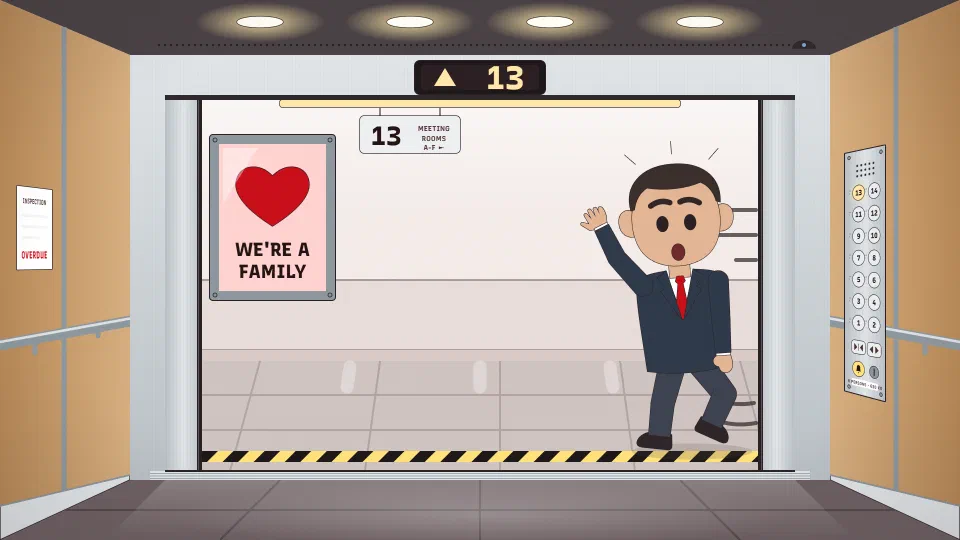
Joining from the elevator
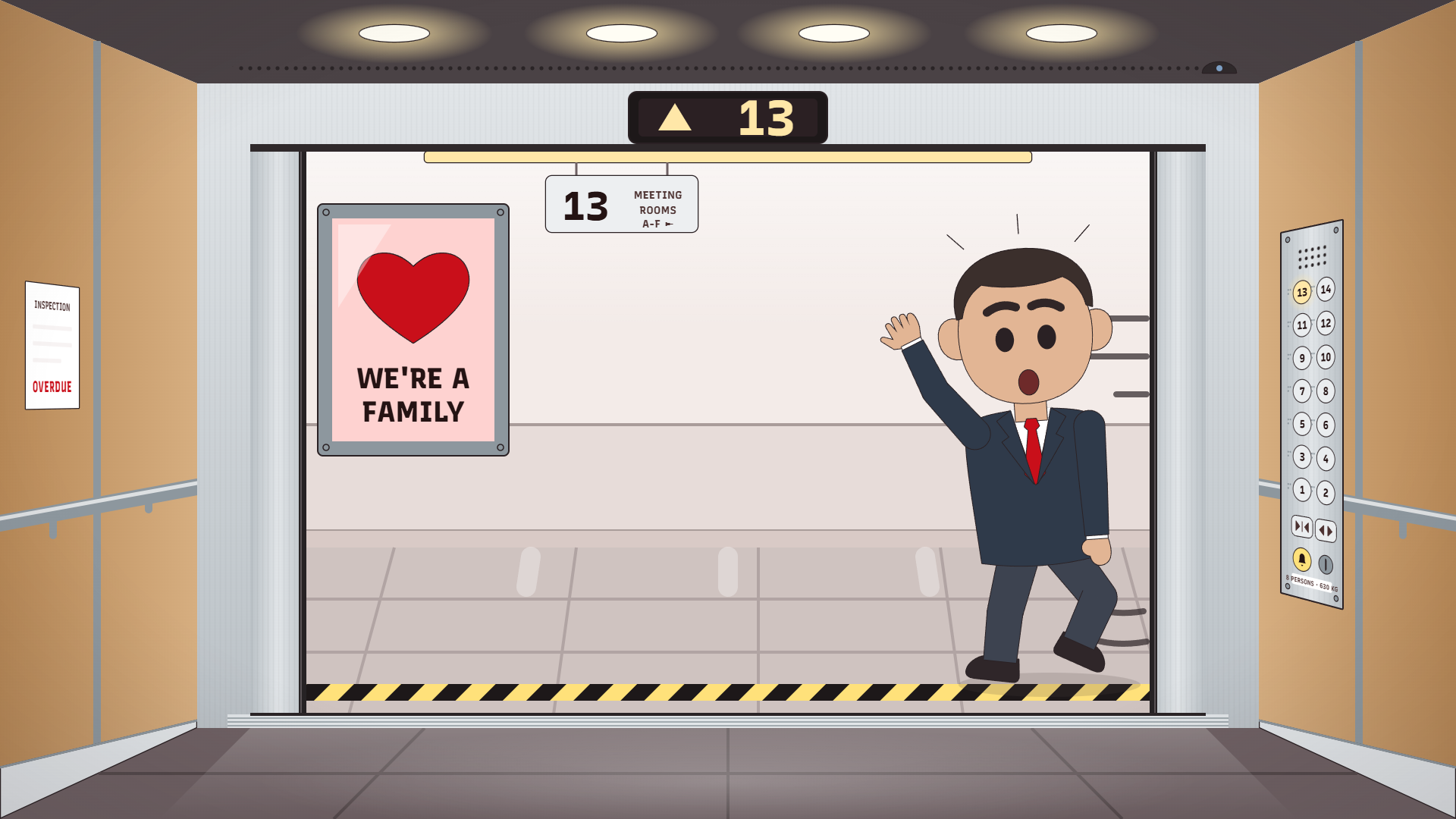
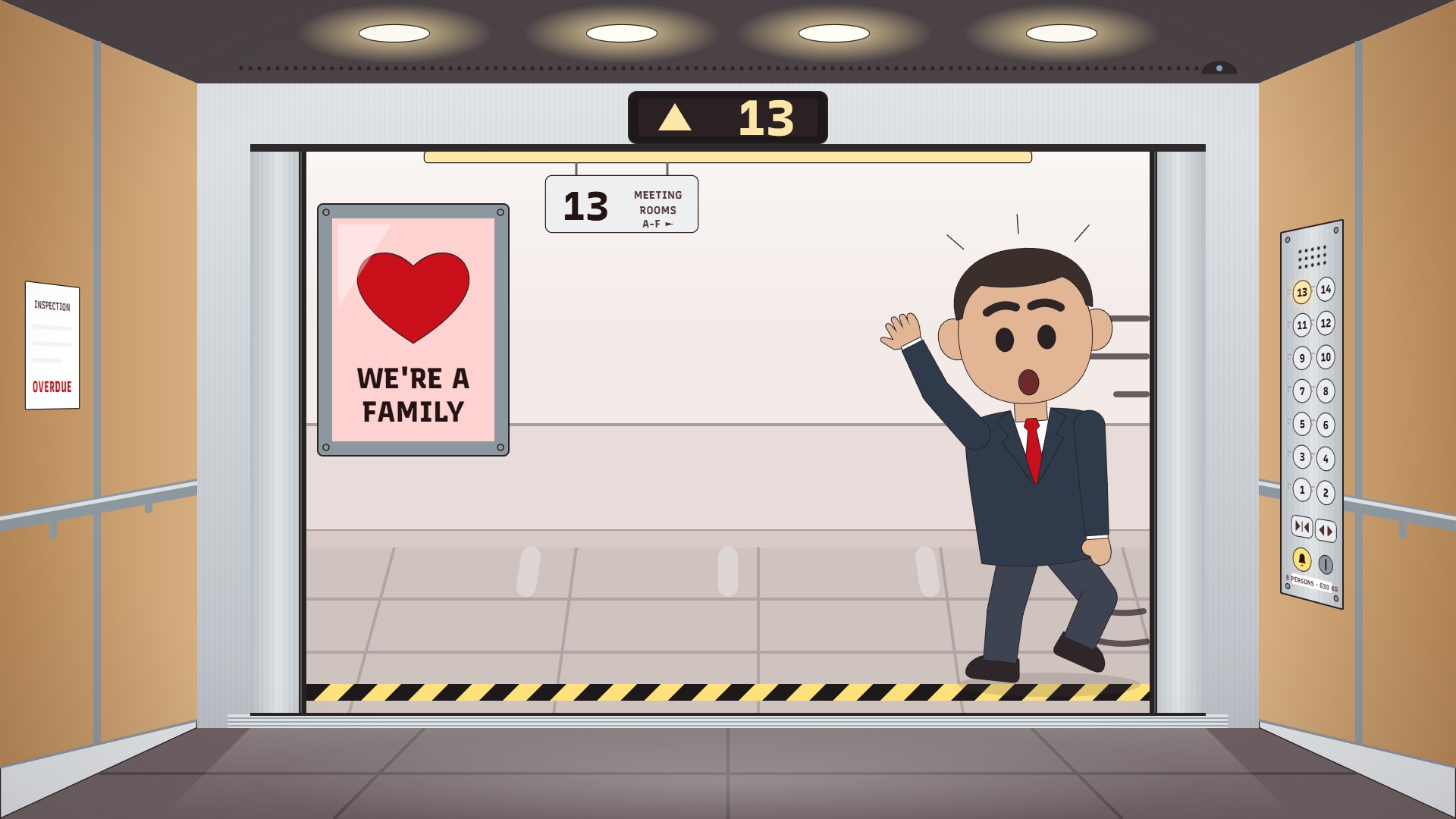
The doors are open and your manager is running for them. Nobody presses the button.
Download Joining from the elevator as PNG 735 KB Download Joining from the elevator as JPG 206 KB
Funny Zoom backgrounds for your next call, like the elevator your manager is running for, or one pizza for a record quarter. They're free to download at 1920 by 1080, and every joke is drawn to stay clear of your head.
The doors are open and your manager is running for them. Nobody presses the button.
Download Joining from the elevator as PNG 735 KB Download Joining from the elevator as JPG 206 KB
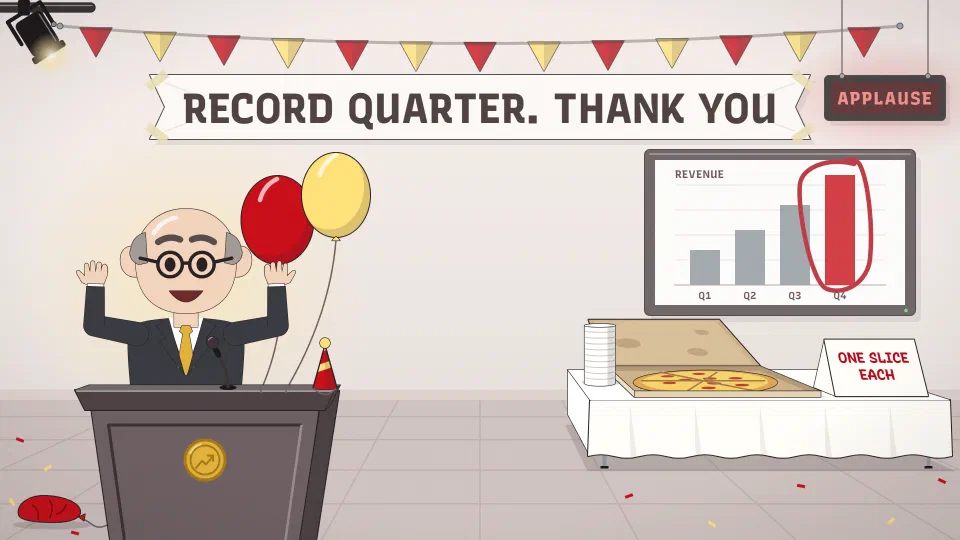
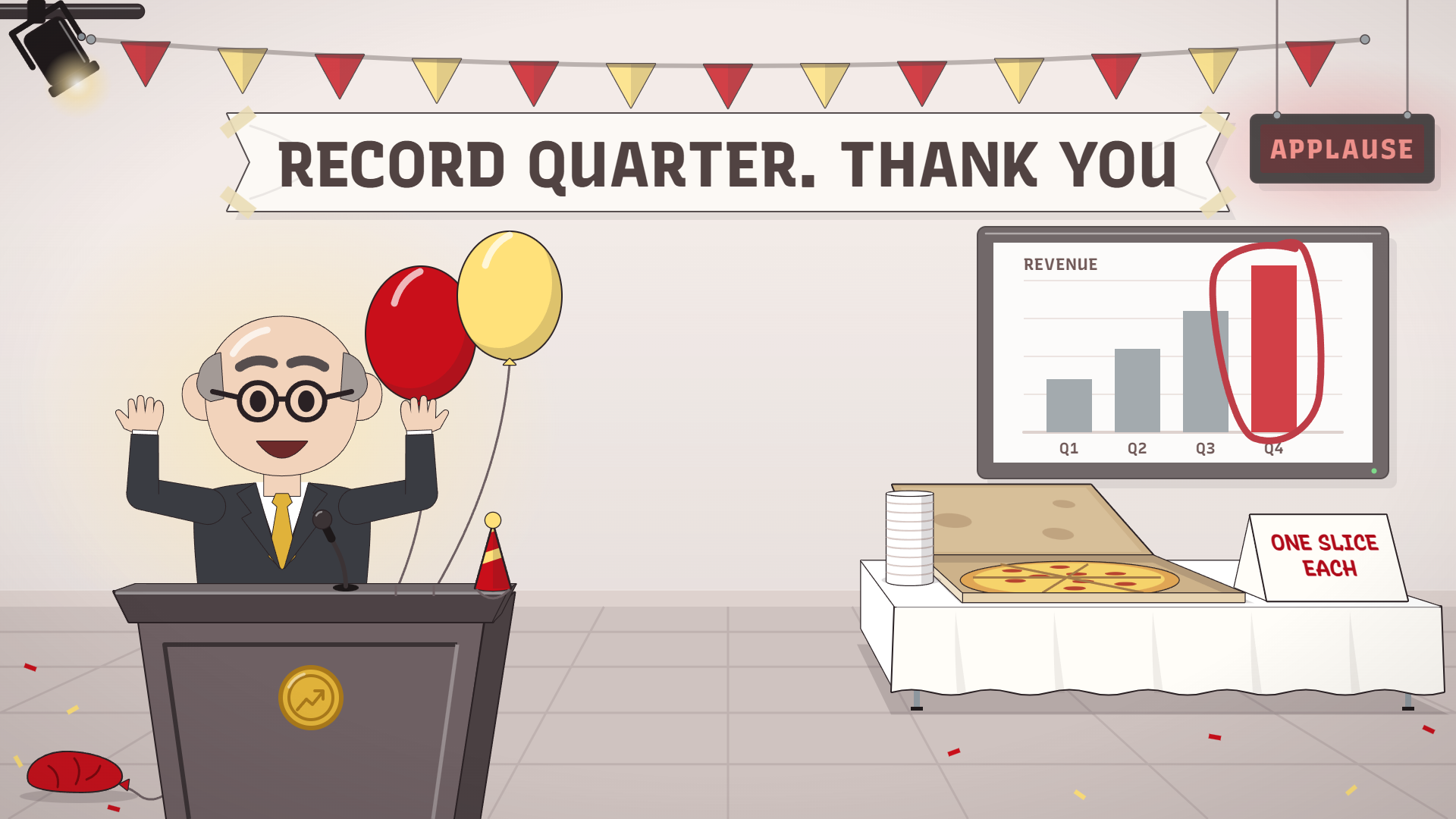
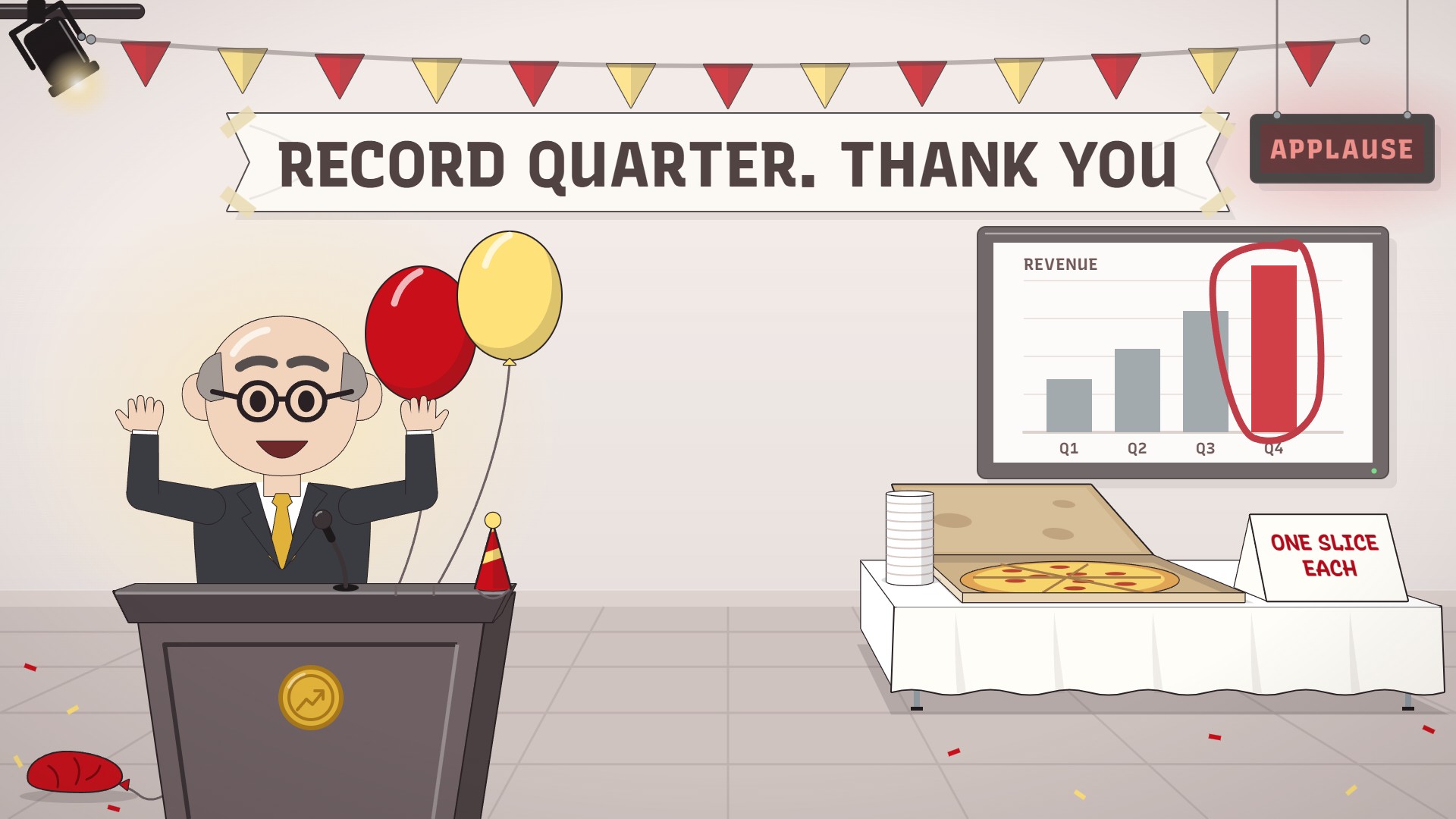
The all-hands stage after the best quarter in company history. Catering sent one pizza.
Download Record quarter as PNG 640 KB Download Record quarter as JPG 199 KB
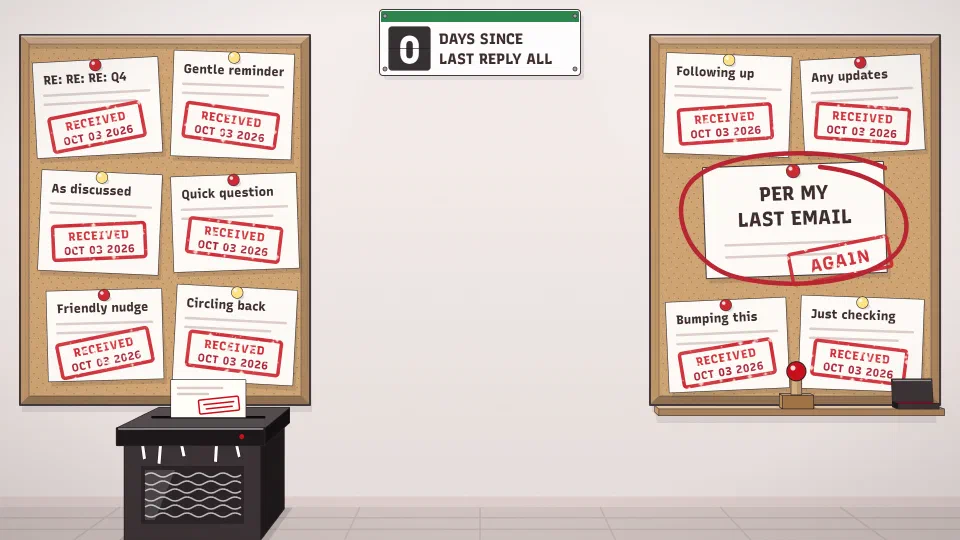
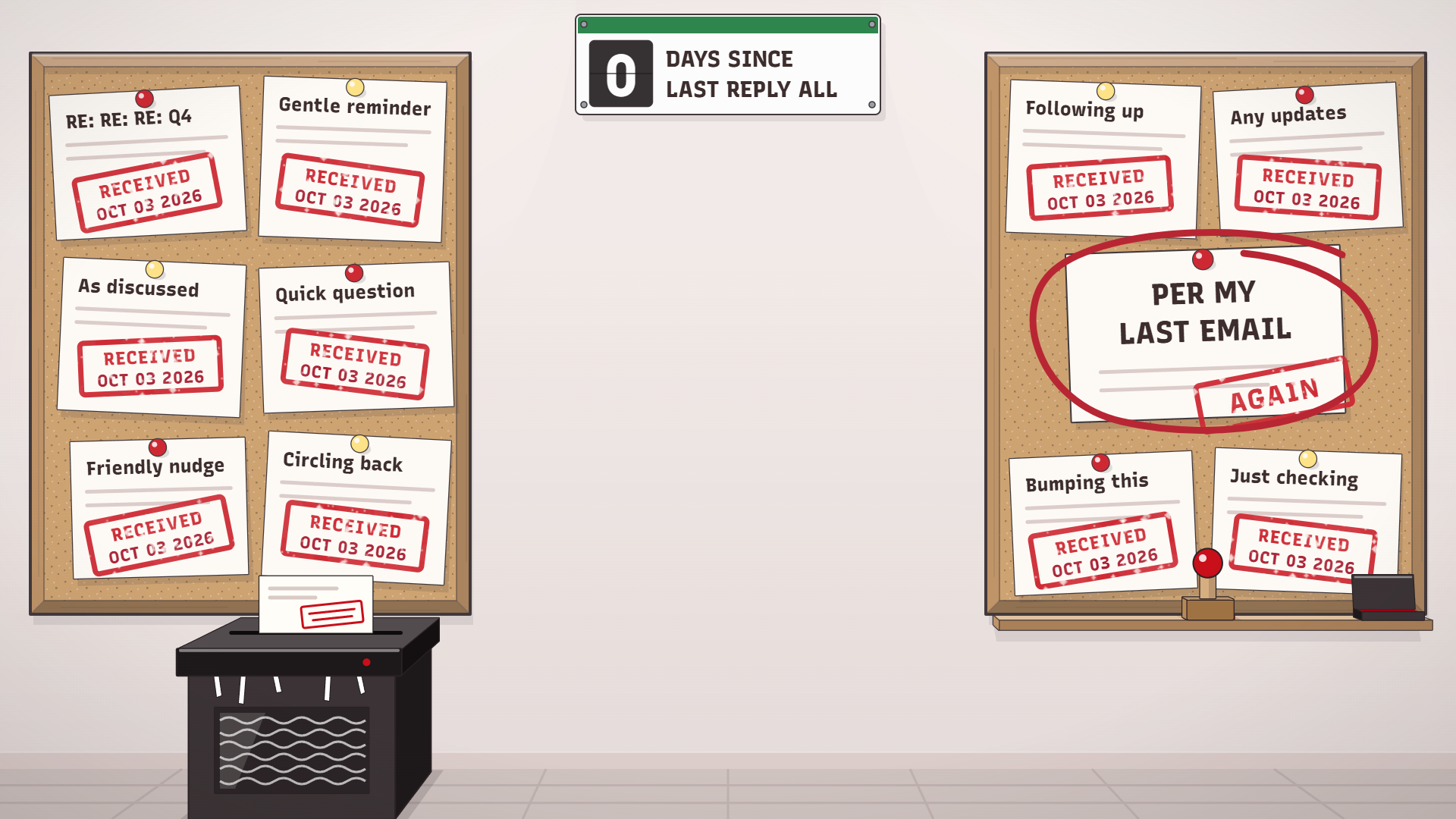
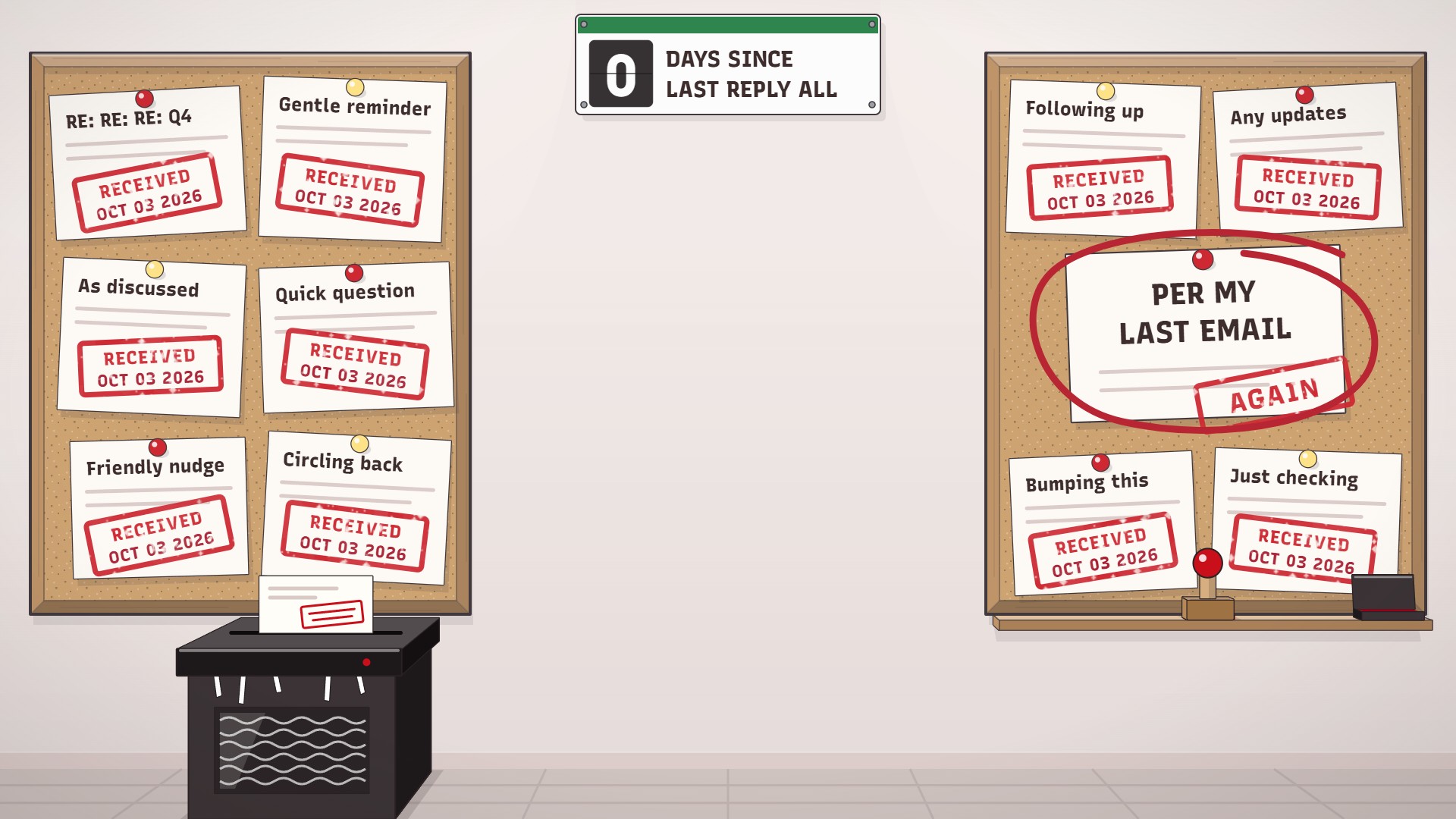
Every memo stamped RECEIVED, and one ringed in red pen for the people who missed it.
Download Per my last email as PNG 629 KB Download Per my last email as JPG 304 KB
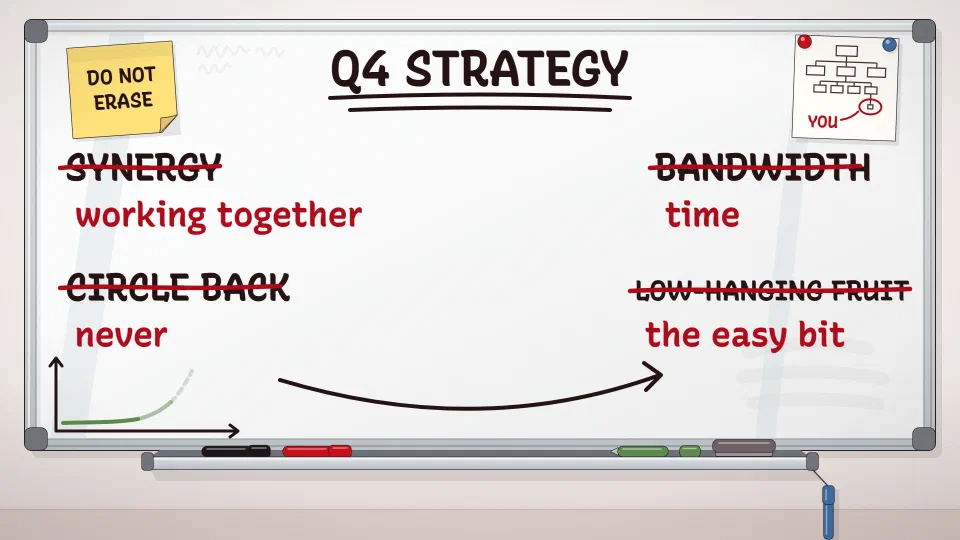
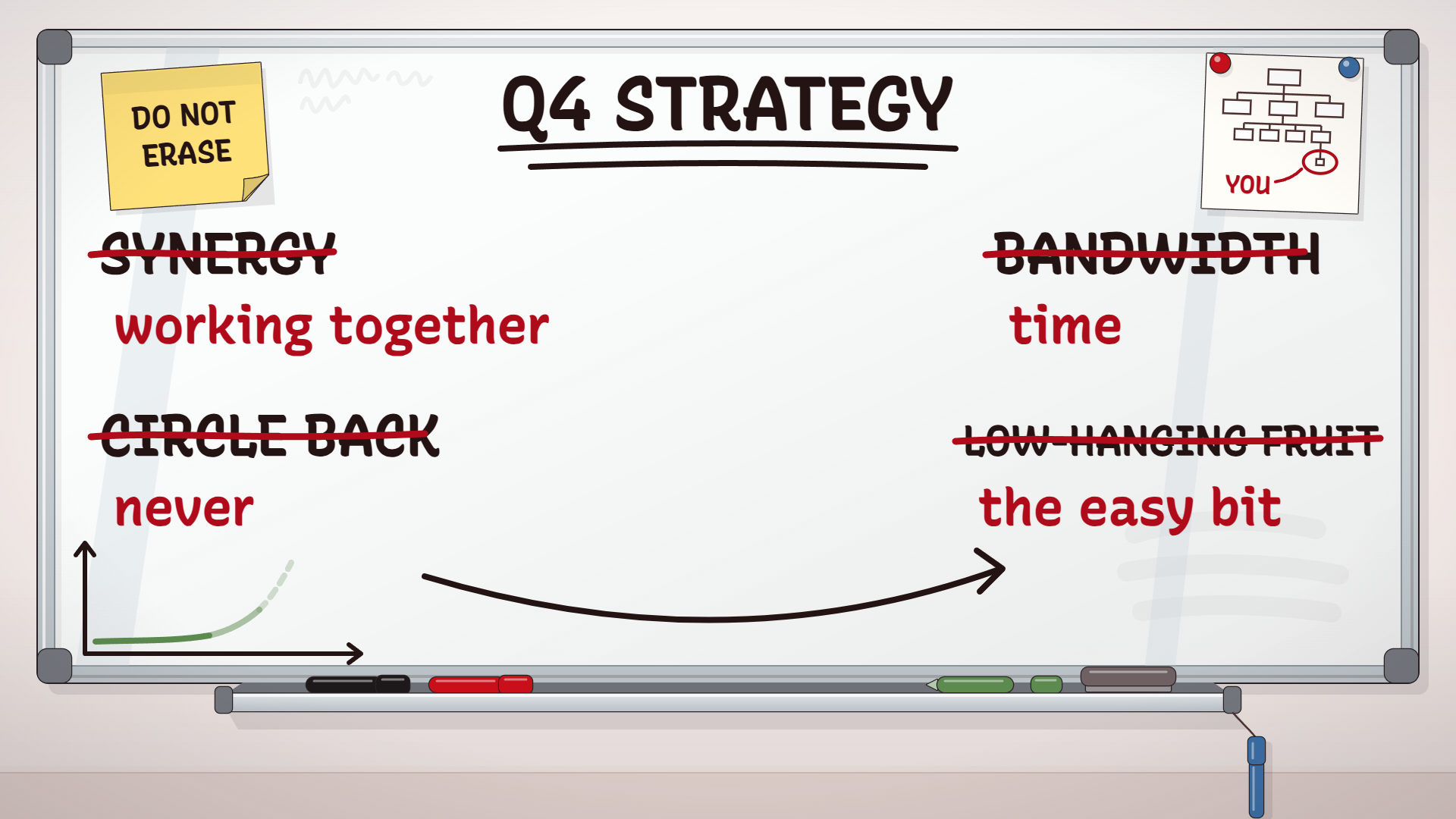
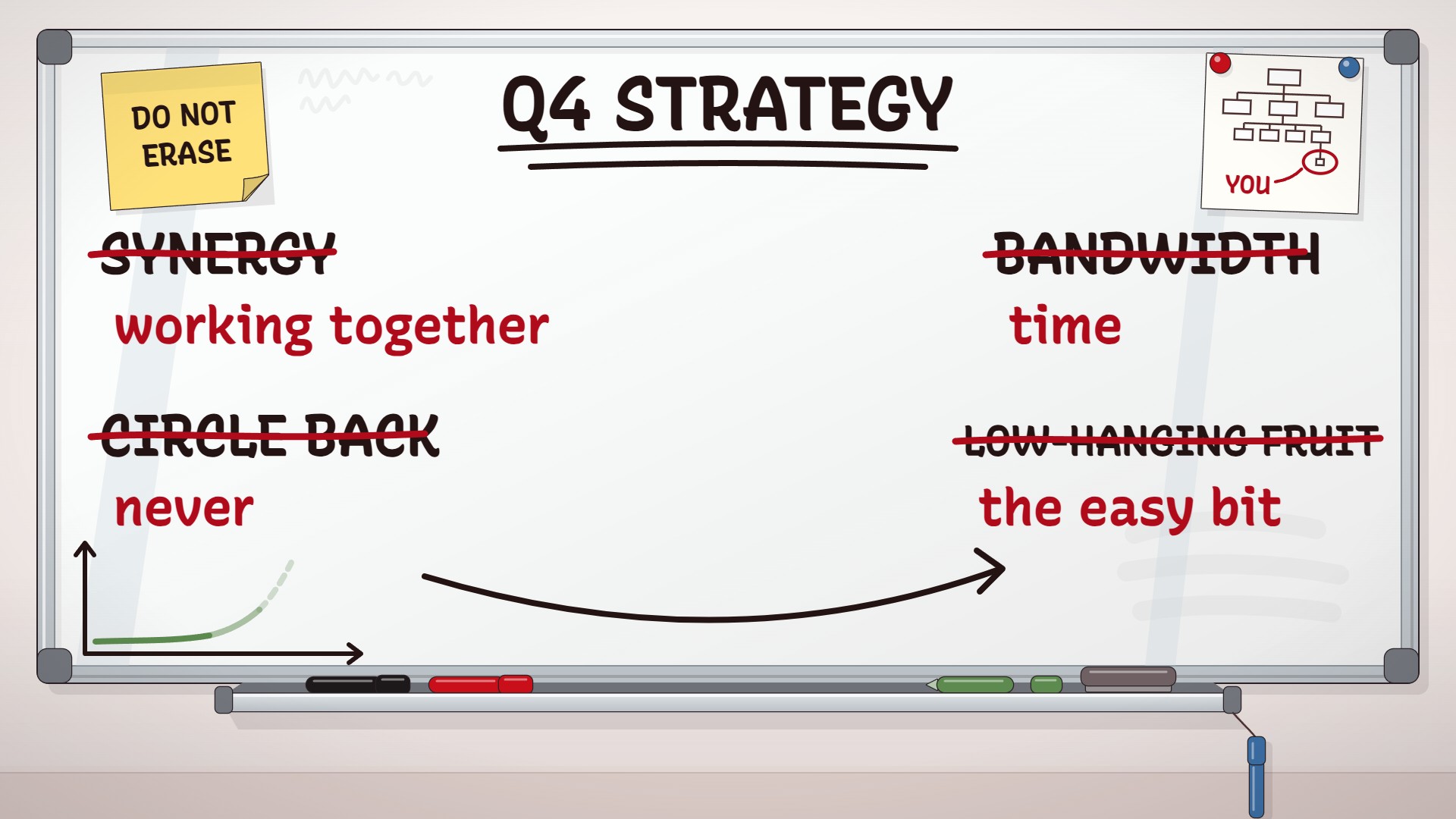
Left over from the offsite. Each piece of jargon is struck through in red pen, with the plain words written after it.
Download The strategy whiteboard as PNG 642 KB Download The strategy whiteboard as JPG 215 KB
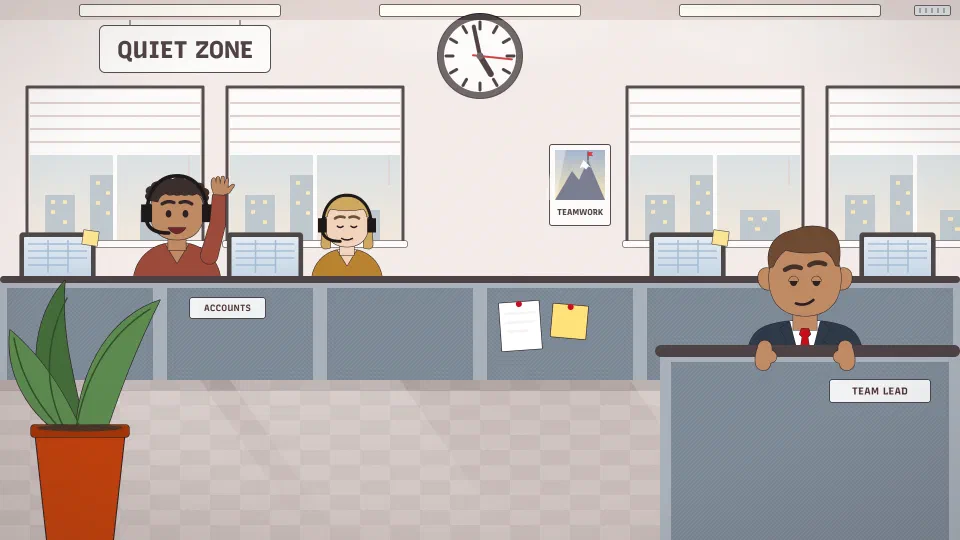
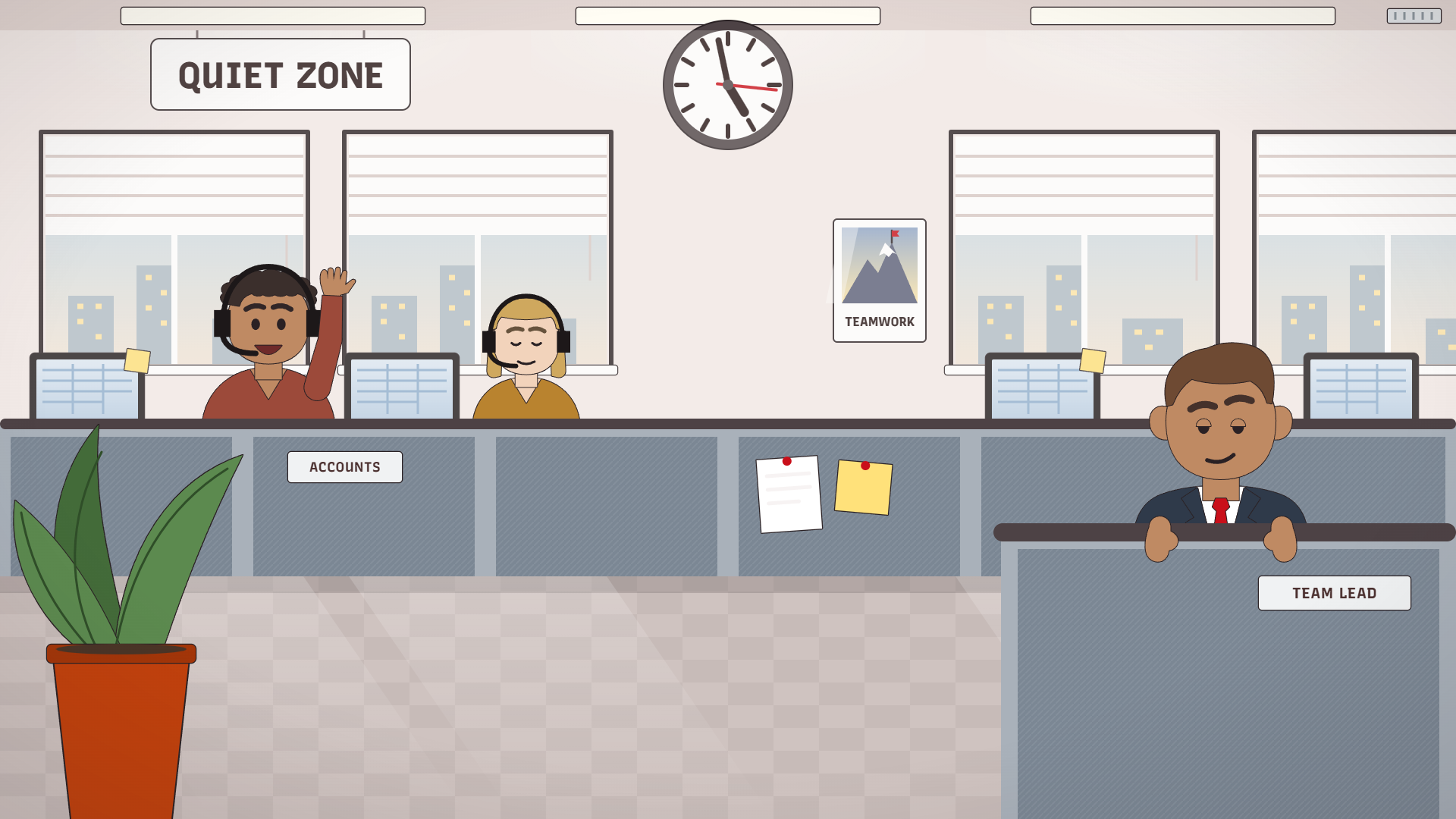
Everyone behind you is on a call too, and your manager has found the partition.
Download The open plan as PNG 466 KB Download The open plan as JPG 201 KB
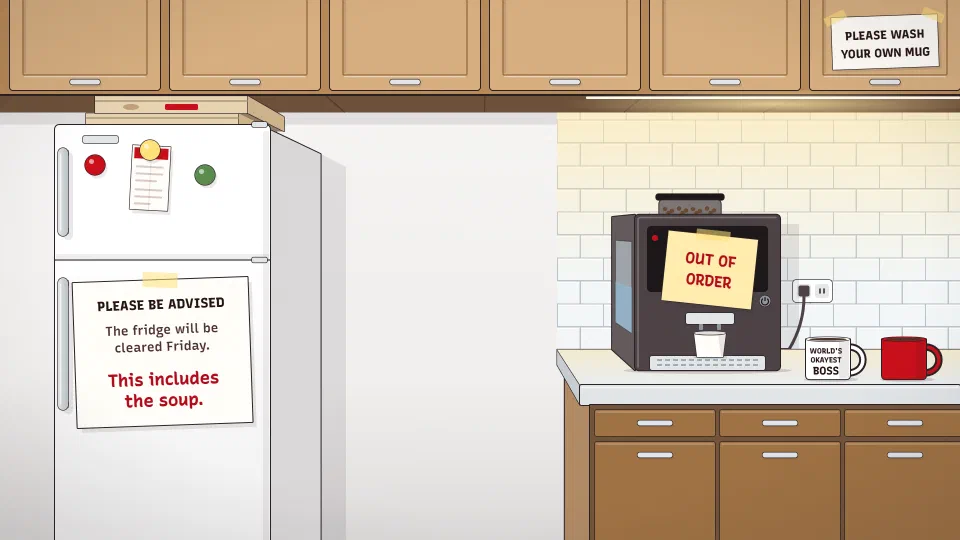
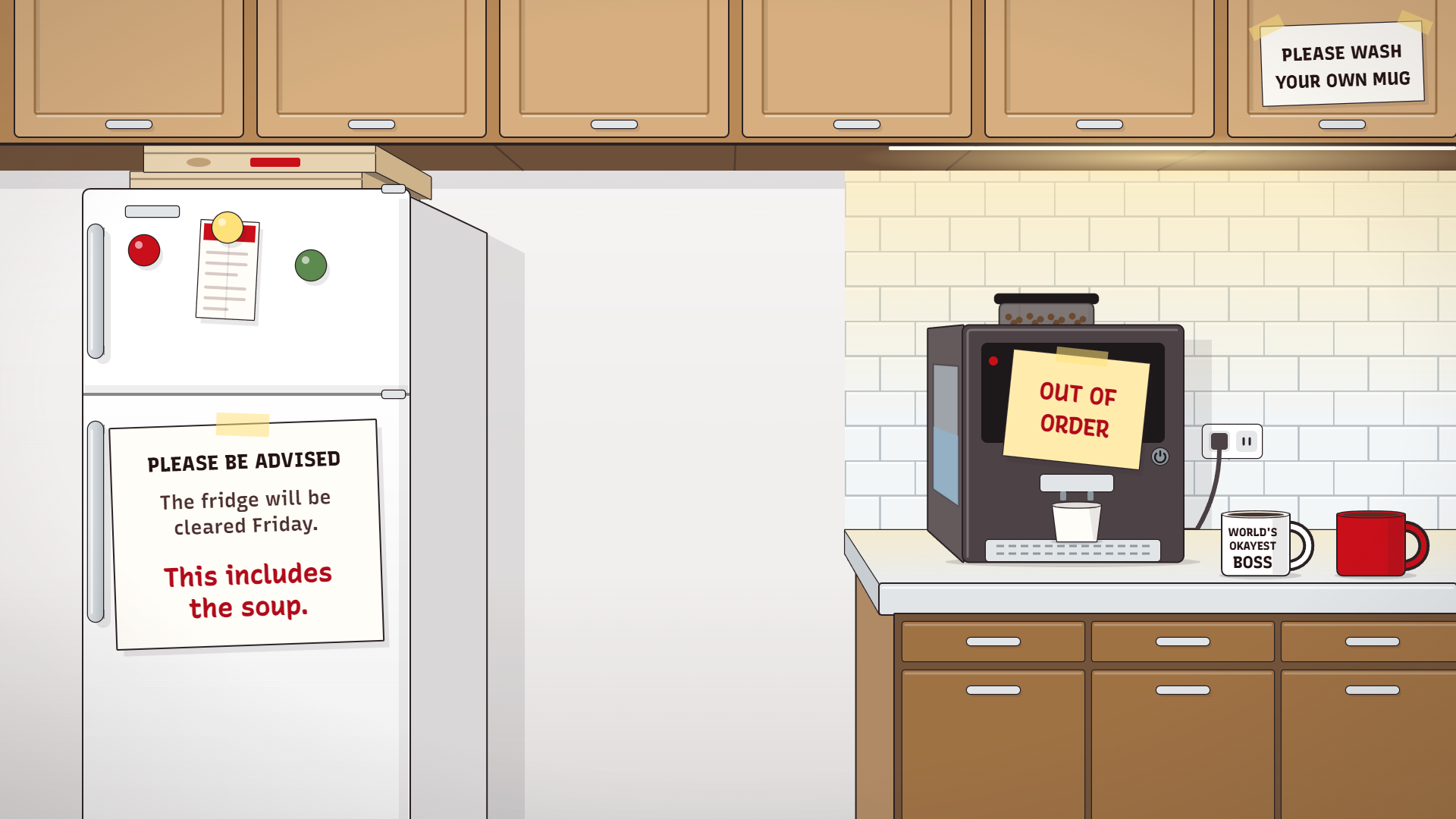
The fridge gets cleared Friday, soup included, and the coffee machine has had the same sticky note since spring.
Download The office kitchen as PNG 469 KB Download The office kitchen as JPG 182 KB
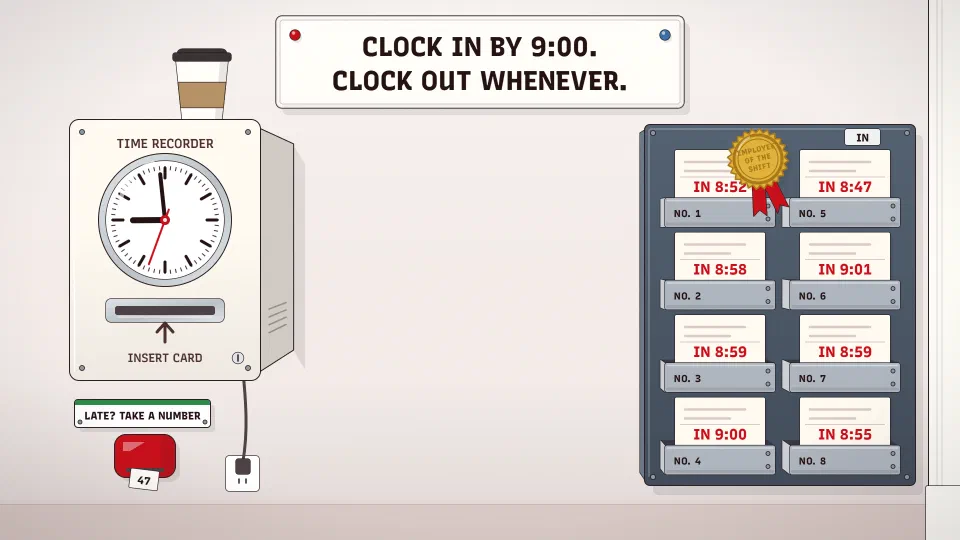
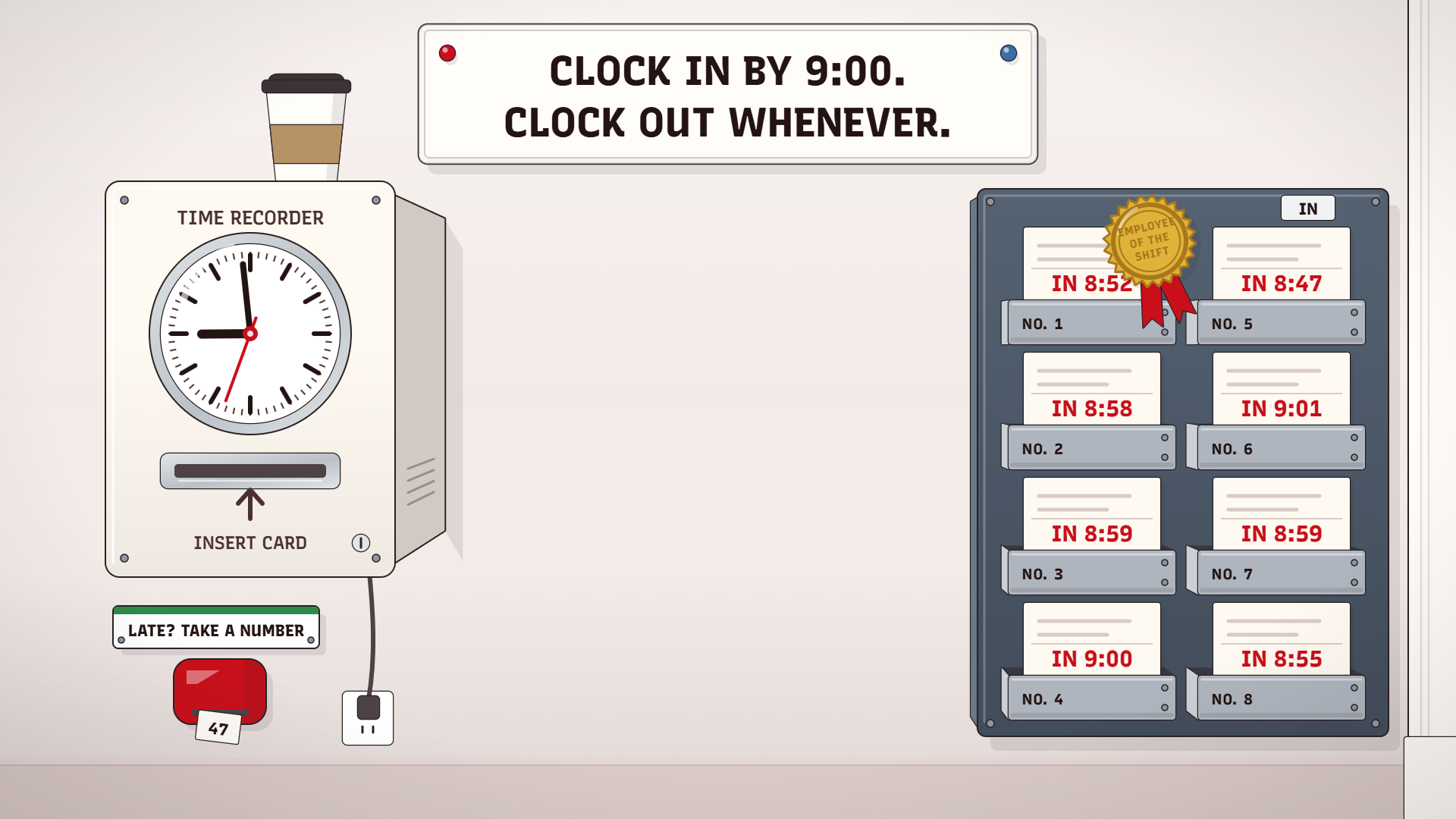
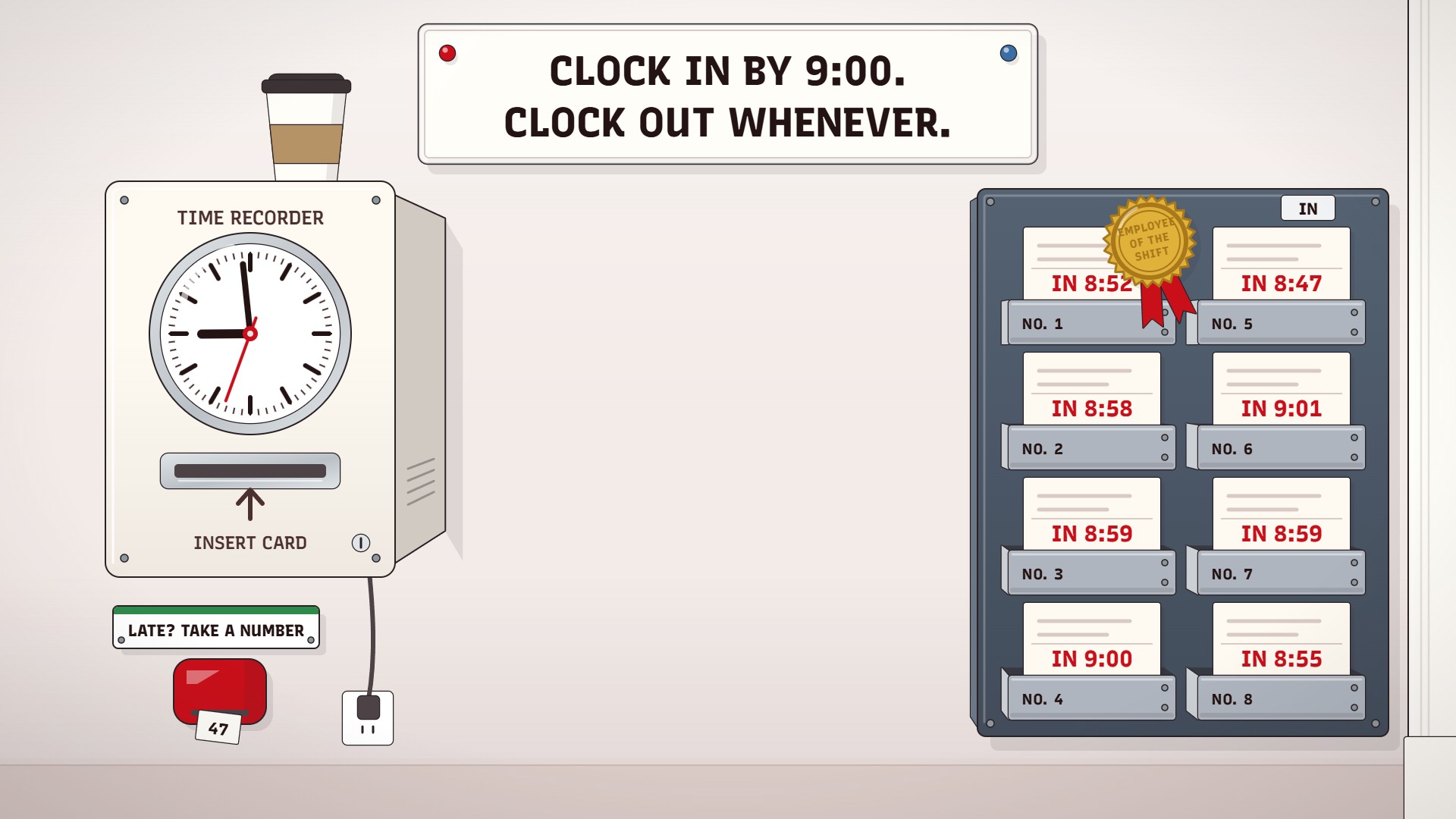
The punch clock says 8:59, the rack is full, and the notice explains which way the minutes count.
Download Clocked in as PNG 479 KB Download Clocked in as JPG 193 KB
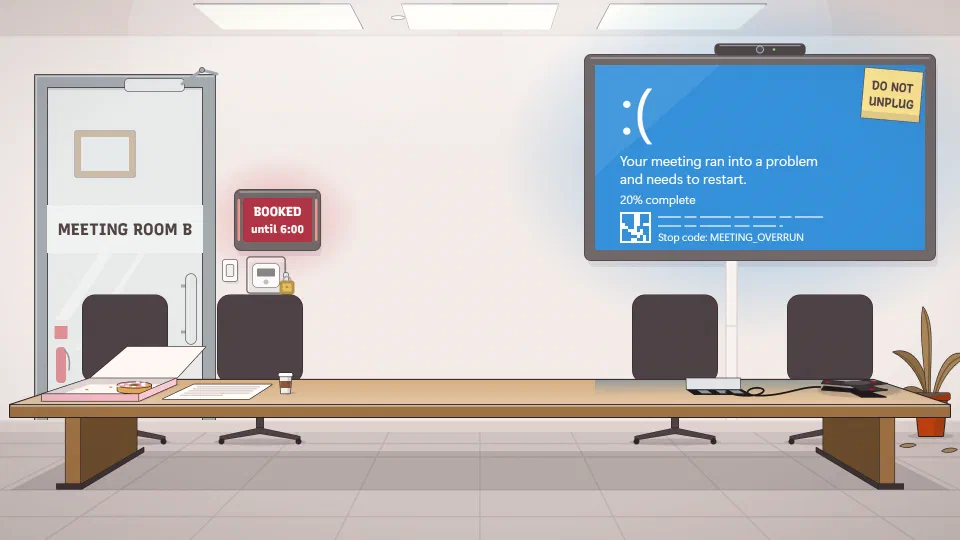
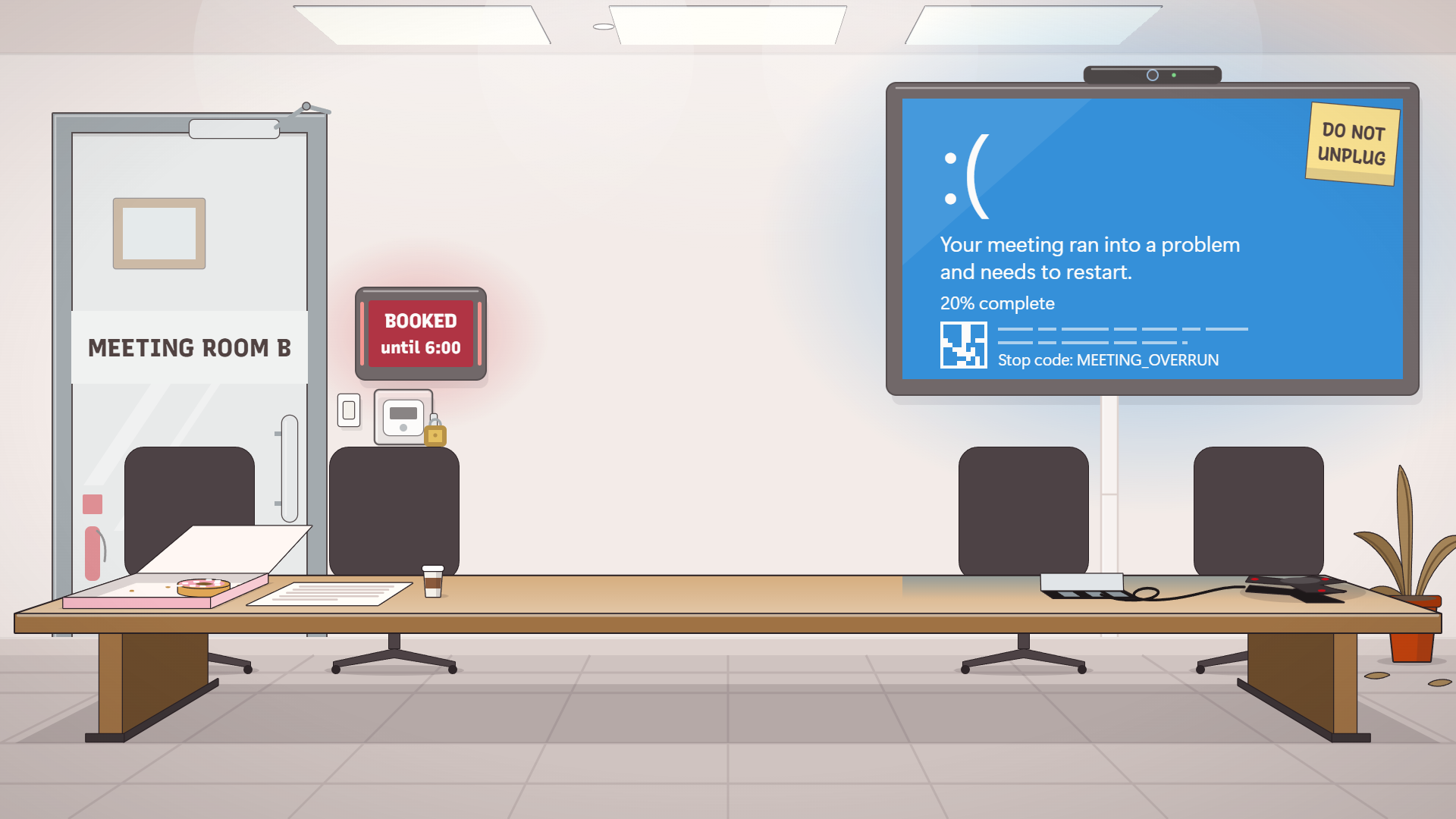
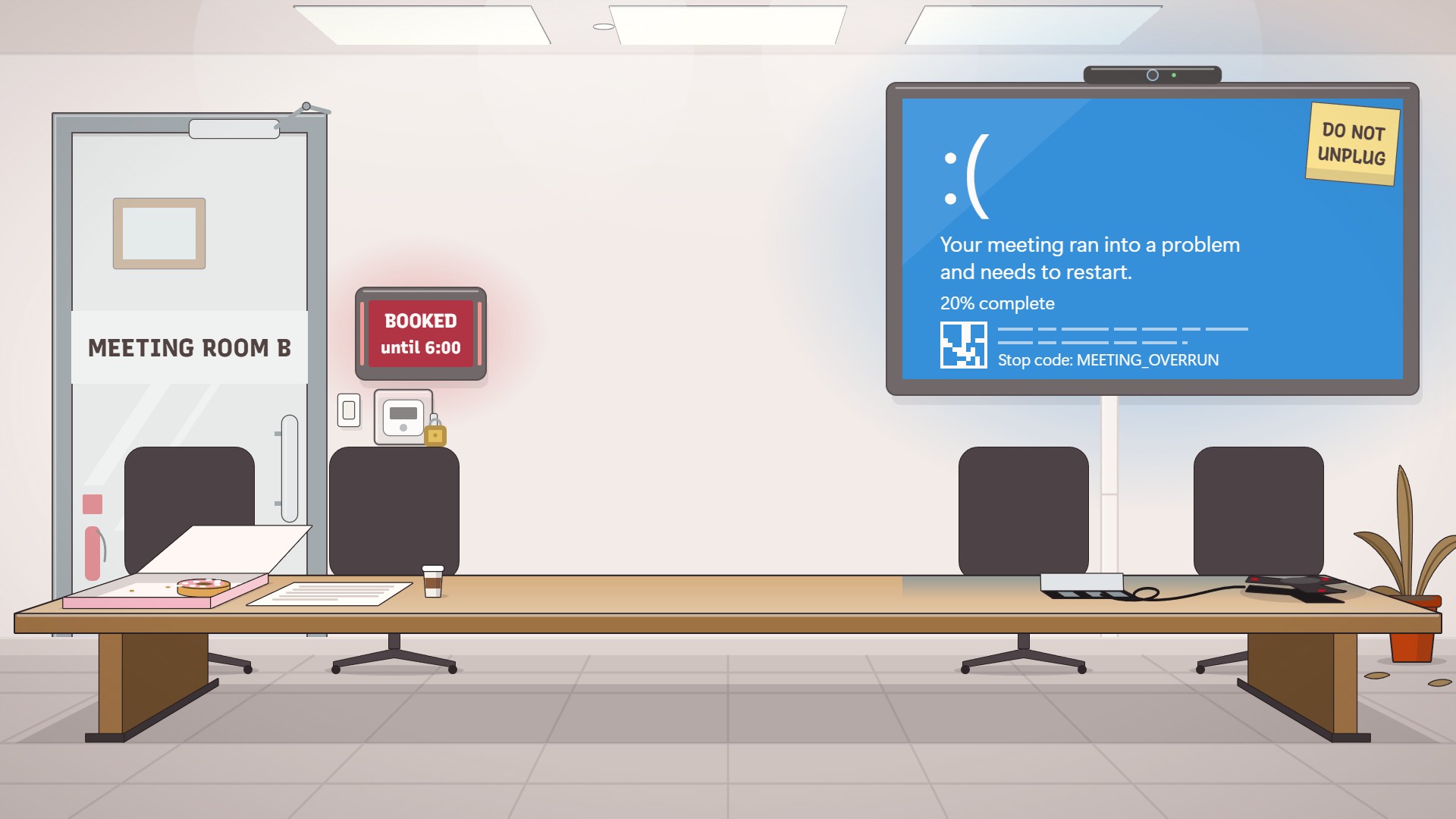
The room is booked, the chairs are empty and the screen has crashed with a stop code nobody can argue with.
Download Meeting room B as PNG 538 KB Download Meeting room B as JPG 170 KB
Teams takes a JPG, PNG or BMP file, and the background stays on for later meetings until you change it.
Zoom takes a 24-bit PNG or a JPG of up to 15 MB.
If your own picture is mirrored, the RECEIVED stamp reads backwards to you and to nobody else. Teams and Zoom both call the setting Mirror my video, and it only changes what you see.
Your head and shoulders cover the middle of the picture, so every background leaves it plain. The jokes sit off to one side or along the top. The files are 1920 by 1080 pixels, the shape of a 16:9 camera. That’s one of the two sizes Zoom suggests for that shape.
Most of these scenes appear somewhere else on the site. The elevator, with the manager in the red tie, is from Close the Door. Pizza Party is played on the Record quarter stage. The red pen on the strategy whiteboard comes from the jargon dictionary.
The same office holds two video calls of its own. If you’d rather skip a call, the fake Zoom meeting runs a stand-in call on your screen. In You’re on Mute, the kid, the dog, the blender and the doorbell all wait for the moment you unmute.
The backgrounds are free for any call, with no sign-up and nothing to install. They matter most on WFH days, when the only office on the call is the one you picked.
1920 by 1080 or 1280 by 720 pixels for a 16:9 camera, and at least 1280 by 720 if you aren't sure of your camera's shape. Zoom takes a PNG or JPG of up to 15 MB, and the backgrounds on this page are all 1920 by 1080.
Yes. Teams takes JPG, PNG and BMP files. Download one, then pick Add new under your video effects and choose the file.
With Mirror my video on, you see your own picture flipped, like your face in a mirror. Everyone else on the call sees the words the right way around. Turning the setting off shows you what they see.
No, both apps work without one. A bright, plain color behind you, such as a green or blue screen, helps Zoom tell you apart from the wall.
Yes, on a computer, where Google Meet lets you upload your own background image. During a call, open Video settings, go to the Backgrounds tab and click Add your own personal background. On a work account, your admin decides whether you can use backgrounds at all.